Documentation
Everything you need to integrate Immagin into your application.
Quick Start
Install the SDK from npm. It has zero dependencies and works in Node.js, Edge runtimes, and the browser.
$ npm install @immagin/clientInitialize the client with your API key. You can find your key in the Console.
import { Immagin } from '@immagin/client'

const client = new Immagin({
  apiKey: 'imk_your_api_key',
})
Config options
apiKey(required) — Your API key withimk_prefix
Authentication
All API requests are authenticated with an API key passed as a Bearer token. Keys are
created in the Console and use the imk_ prefix. Only the hash of the key
is stored — the full key is shown once at creation time.
Authorization: Bearer imk_your_api_keyThe SDK handles this automatically — just pass your key to the constructor.
Uploading Images
Images are uploaded directly using presigned URLs. The file never touches the API server — your client uploads straight to storage.
Simple upload
The upload() method handles the full flow: gets a presigned URL, then
uploads the file directly. Accepts Blob, Buffer, or ReadableStream.
const result = await client.images.upload(file, 'hero.jpg')

// result.key → 'hero.jpg'
Browser upload flow
For browser uploads, use signUrl() on your server to get a presigned URL,
then pass it to the browser. This way your API key is never exposed to the client.
// 1. Server: get a presigned upload URL
const { uploadUrl, key } = await client.images.signUrl('avatar.jpg')

// 2. Return uploadUrl to browser// 3. Browser: upload directly
await fetch(uploadUrl, {
method: 'PUT',
body: file
})Presigned URLs expire after 5 minutes. Generate them on demand, not in advance.
Transformations
Image transformations are applied at request time by Luna, the processing engine.
Edits are encoded in the image URL and processed on the fly — originals are never
modified. All URLs generated by images.url() are automatically signed — the signature
locks transformation parameters so they can't be tampered with.
Resizing
Pass a resize object with width and optional
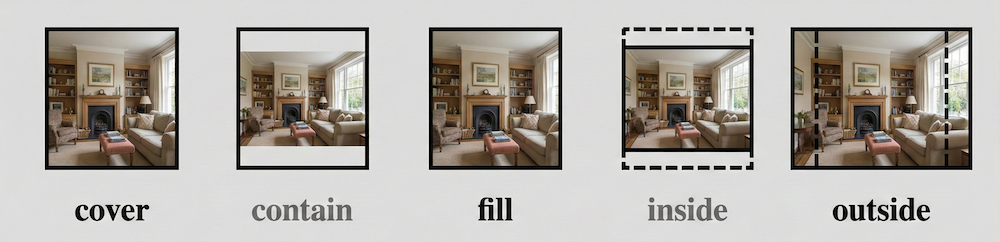
height. Omitting height scales proportionally. Control crop behavior with
fit, position, and background.
Defaults: fit: 'cover', withoutEnlargement: true.
// Width only (proportional height)
await client.images.url('photo.jpg', { resize: { width: 800 } })

// Exact dimensions (cover fit, crops to fill)
await client.images.url('photo.jpg', { resize: { width: 400, height: 400 } })

// Contain fit with background color
await client.images.url('photo.jpg', { resize: {
  width: 800,
  height: 600,
  fit: 'contain',
  background: '#000000'
} })
// Width only (proportional height)
await client.images.url('photo.jpg', [
{ resize: { width: 800 } }
])
// Exact dimensions (cover fit, crops to fill)
await client.images.url('photo.jpg', [
{ resize: { width: 400, height: 400 } }
])
// Contain fit with background color
await client.images.url('photo.jpg', [
{ resize: {
width: 800,
height: 600,
fit: 'contain',
background: '#000000'
} }
])Resize options
width(required) — Target width in pixelsheight— Target height in pixels (scales proportionally if omitted)fit— How to fit:'cover''contain''fill''inside''outside'(default:'cover')position— Where to crop from:'top''right''bottom''left''center''entropy''attention'. Use'attention'to automatically focus on the most interesting part of the imagebackground— Background color for'contain'fit (CSS color string)upscale— Allow making small images larger (default:false)downscale— Allow making large images smaller (default:true)
Rotate & Flip
Rotate images by angle or mirror them vertically/horizontally.
// Rotate 90 degrees
await client.images.url('photo.jpg', { rotate: { angle: 90 } })

// Rotate with background fill
await client.images.url('photo.jpg', { rotate: { angle: 45, background: '#000000' } })

// Flip vertically / flop horizontally
await client.images.url('photo.jpg', { flip: true })
await client.images.url('photo.jpg', { flop: true })
// Rotate 90 degrees
await client.images.url('photo.jpg', [
{ rotate: { angle: 90 } }
])
// Resize, rotate, and flip in one pipeline
await client.images.url('photo.jpg', [
{ resize: { width: 800 } },
{ rotate: { angle: 45, background: '#000000' } },
{ flip: true }
])Rotate options
angle(required) — Rotation angle in degreesbackground— Fill color for uncovered area (CSS color string)
Auto-orient
All images are automatically oriented based on their EXIF orientation tag before any edits are applied. This ensures photos taken on mobile devices display correctly regardless of how the camera was held. To disable this behavior, pass { autoOrient: false } in your edits array.
Crop & Extend
Extract a region from the image or add padding/borders around it.
// Crop a 400x300 region starting at (100, 50)
await client.images.url('photo.jpg', { crop: {
  left: 100, top: 50, width: 400, height: 300
} })

// Add 20px red border on all sides
await client.images.url('photo.jpg', { extend: {
  top: 20, bottom: 20, left: 20, right: 20,
  background: '#ff0000'
} })

// Auto-trim borders
await client.images.url('photo.jpg', { trim: { threshold: 10 } })
// Crop a region then add border
await client.images.url('photo.jpg', [
{ crop: { left: 100, top: 50, width: 400, height: 300 } },
{ extend: {
top: 20, bottom: 20, left: 20, right: 20,
background: '#ff0000'
} }
])
// Auto-trim then resize
await client.images.url('photo.jpg', [
{ trim: { threshold: 10 } },
{ resize: { width: 800 } }
])Crop options
left,top(required) — Top-left corner of the crop regionwidth,height(required) — Dimensions of the crop region
Extend options
top,bottom,left,right— Padding in pixels per sidebackground— Fill color (CSS color string)
Trim options
background— Color to trim (defaults to top-left pixel)threshold— Tolerance for color matching (default:10)
Adjustments
Apply color and sharpness adjustments — blur, sharpen, grayscale, brightness, tint, and more.
// Gaussian blur
await client.images.url('photo.jpg', { blur: 5 })

// Sharpen
await client.images.url('photo.jpg', { sharpen: 2 })

// Grayscale
await client.images.url('photo.jpg', { grayscale: true })

// Adjust brightness and saturation
await client.images.url('photo.jpg', { modulate: {
  brightness: 1.2, saturation: 0.8
} })

// Tint with a color
await client.images.url('photo.jpg', { tint: { r: 255, g: 200, b: 0 } })

// Invert colors (negate)
await client.images.url('photo.jpg', { invert: true })

// Normalize (auto-contrast)
await client.images.url('photo.jpg', { normalize: { lower: 2, upper: 98 } })

// Flatten alpha channel with white background
await client.images.url('logo.png', { flatten: { background: '#ffffff' } })
// Resize, sharpen, and boost contrast
await client.images.url('photo.jpg', [
{ resize: { width: 800 } },
{ sharpen: 2 },
{ normalize: { lower: 2, upper: 98 } }
])
// Grayscale thumbnail with blur
await client.images.url('photo.jpg', [
{ resize: { width: 400 } },
{ grayscale: true },
{ blur: 3 }
])
// Flatten PNG alpha, tint, and adjust brightness
await client.images.url('logo.png', [
{ flatten: { background: '#ffffff' } },
{ tint: { r: 255, g: 200, b: 0 } },
{ modulate: { brightness: 1.2 } }
])Adjustment operations
blur— Gaussian blur intensity (0.3–1000). Low values like1–3give a subtle softening,5–10a noticeable blur, and20+a heavy frosted-glass effectsharpen— Sharpen intensity.1–2for subtle sharpening,3–5for aggressive detail enhancementgrayscale— Convert to grayscale (true, no options)modulate—brightness(multiplier),saturation(multiplier),hue(degrees),lightness(additive)tint— Tint with RGB color:r,g,b(0–255)invert— Invert all colors (true/false)normalize— Auto-contrast stretch.lower/upperpercentiles (default 1/99)flatten— Merge alpha withbackgroundcolor
Output format
By default, Luna outputs WebP at quality 90. You can request a specific format by
passing an output object as the third argument to url().
Responses include immutable cache headers for edge caching.
// Force JPEG at quality 85
await client.images.url(
  'photo.jpg',
  [{ resize: { width: 800 } }],
  { format: 'jpeg', quality: 85 }
)

// Lossless WebP
await client.images.url(
  'photo.png',
  [{ resize: { width: 1200 } }],
  { format: 'webp', lossless: true }
)
Output options
format—'webp''jpeg''png''avif''gif''jp2''tiff''heif'(default:'webp')quality— 1–100 (default:90)progressive— Progressive loading for JPEG and PNGlossless— Lossless compression for WebP and AVIF
Composition
Composite layers onto images at request time. Layers are applied after any transformations (resize, format conversion) in the pipeline.
Watermark
Add text watermarks or captions with configurable font size, color, position, and opacity.
await client.images.url('photo.jpg', {
  text: {
    text: '© Acme Inc',
    position: 'bottom-right',
    fontSize: 24,
    color: '#ffffff',
    opacity: 0.8
  }
})
await client.images.url('photo.jpg', [
{ resize: { width: 1200, height: 630 } },
{ text: {
text: '© Acme Inc',
position: 'bottom-right',
fontSize: 24,
color: '#ffffff',
opacity: 0.8
} }
])Watermark options
text— The text string to renderfontSize— Font size in pixelscolor— Hex color, e.g.'#ffffff'opacity— Float from0to1position— One of'top-left''top-center''top-right''center-left''center''center-right''bottom-left''bottom-center''bottom-right'padding— Padding around text in pixels
Listing & Deleting
List images
Paginate through your images with optional limit.
const { images, nextCursor } = await client.images.list({
  limit: 50
})

// images → [{ key, size, lastModified }]

// Next page
if (nextCursor) {
  const page2 = await client.images.list({ cursor: nextCursor })
}
Delete an image
await client.images.delete('old-avatar.jpg')Metadata
Inspect image properties without downloading the full image. The request goes through Luna, which extracts metadata and returns JSON.
const meta = await client.images.metadata('photo.jpg')

// meta.width       → 1920
// meta.height      → 1080
// meta.format      → 'jpeg'
// meta.hasAlpha    → false
// meta.size        → 204800 (bytes)
Metadata fields
width/height— Dimensions in pixelsformat— Source format ('jpeg','png','webp', etc.)space— Color space ('srgb','cmyk', etc.)channels— Number of color channels (3 for RGB, 4 for RGBA)hasAlpha— Whether the image has an alpha channelorientation— EXIF orientation (1–8)density— DPI (dots per inch)isProgressive— Whether the image is progressively encodedpages— Number of pages (for multi-page formats like GIF, TIFF)size— File size in bytes
metadata() uses node:crypto for signing and is intended for server-side use only.
API Keys
Manage API keys programmatically. Keys use the imk_ prefix and are only
shown in full once at creation time.
// Create a new key
const { key, prefix, name } = await client.keys.create({
  name: 'Production'
})
// key    → 'imk_aBcDeFgHiJkLmNoPqRsTuV'
// prefix → 'imk_aBcD'

// List all keys
const keys = await client.keys.list()

// Revoke a key
await client.keys.revoke(keyId)
Error Handling
All API errors throw an ImmaginError with the HTTP status code and
response body.
import { Immagin, ImmaginError } from '@immagin/client'

try {
  await client.images.delete('missing.jpg')
} catch (err) {
  if (err instanceof ImmaginError) {
    console.log(err.status)  // 404
    console.log(err.message) // 'Not Found'
    console.log(err.body)    // response body
  }
}
URL Format
Luna image URLs encode the request as a signed payload. Understanding the format isn't required — the SDK handles it — but here's the structure:
https://{tenantId}.immag.in/{payload}?sig={signature}payload
Encoded JSON containing the image key and any edits:
{ "key": "hero.jpg", "edits": [{ "resize": { "width": 800, "height": 600 } }] }signature
A cryptographic signature derived from your project's secret. Prevents unauthorized URL tampering.
Project secret
Generated when you create a project — available in the Console. The SDK uses it automatically to sign URLs.
Examples
Common real-world patterns for integrating Immagin into your app.
Responsive images
Generate multiple sizes for srcset and let the browser pick the best one.
const widths = [400, 800, 1200, 1600]

const srcset = await Promise.all(
  widths.map(async (w) => {
    const url = await client.images.url('hero.jpg', [
      { resize: { width: w } }
    ])
    return `${url} ${w}w`
  })
)

// <img srcset={srcset.join(', ')} sizes="100vw" />
OG image
Generate unique Open Graph images on the fly for every blog post. Luna resizes the post's cover image to 1200×630 and overlays the title — no build step, no pre-rendering, no image editing tools needed.
function getOgImage(post: Post) {
  return client.images.url(post.coverImage, [
    { resize: { width: 1200, height: 630, fit: 'cover' } },
    { text: {
      text: post.title,
      fontSize: 48,
      position: 'bottom-left',
      color: 'white',
      padding: 40
    } }
  ])
}

// In your page's <head>
const ogUrl = await getOgImage(post)
// <meta property="og:image" content={ogUrl} />
User avatar
Square crop with attention-based positioning to keep faces centered.
const avatar = await client.images.url('users/profile.jpg', [
  { resize: {
    width: 256,
    height: 256,
    fit: 'cover',
    position: 'attention'
  } }
])

// <img src={avatar} class="rounded-full" />
Photo gallery
Consistent thumbnails with uniform dimensions, sharpened for crisp display.
const { images } = await client.images.list({ prefix: 'gallery/' })

const thumbs = await Promise.all(
  images.map((img) =>
    client.images.url(img.key, [
      { resize: { width: 300, height: 300 } },
      { sharpen: 1 }
    ])
  )
)
Blur placeholder (LQIP)
Generate a tiny blurred preview to show while the full image loads. The small size (20px wide) keeps the inline data URL under 1 KB.
// Tiny blurred thumbnail for inline placeholder
const placeholder = await client.images.url('photos/hero.jpg', [
  { resize: { width: 20 } },
  { blur: 10 }
])

// Full-size image
const full = await client.images.url('photos/hero.jpg', [
  { resize: { width: 1200 } }
])
Product image
Clean product shots on a white background — trim extra whitespace, normalize contrast, then resize to a consistent dimension.
const product = await client.images.url('products/shoe.jpg', [
  { trim: { threshold: 15 } },
  { normalize: { lower: 1, upper: 99 } },
  { resize: {
    width: 600,
    height: 600,
    fit: 'contain',
    background: '#ffffff'
  } },
  { sharpen: 1 }
])
Need help? Contact support